BlogGetting started with Fadebox, part 1 of 2
Install Fadebox on your laptop
Two containers, one .env file and a wildcard domain that needs no DNS: Fadebox on your own machine to try it, and the three things that change on a real server.
Fadebox is a self-hosted orchestrator for ephemeral environments on Docker. You describe services as templates, compose them into an environment, and stamp out isolated, disposable instances of that environment, each on its own URL. One per pull request, per developer, per demo. It runs as a single app in front of plain Docker daemons: no Kubernetes, no SaaS control plane, no phone-home.
The first time you try it, you want it on the machine in front of you, and that is what this post does: Fadebox installed, signed in, and the local Docker daemon set up so that everything you deploy later answers on a hostname. It stops at the point where an operations person would hand the platform to a team. The next post picks up from there and deploys a real application on it.
One thing to be clear about before the first command. A laptop is the right place to try Fadebox and the wrong place to run it. In a company, Fadebox belongs on a dedicated server: a small VM for the app itself, and one or more Docker hosts, often the same machine at first, that the team’s environments actually run on. The app is a control plane; the runtimes are where the capacity goes. Everything below is the same procedure on such a server, with three differences called out where they apply: a real domain instead of the local wildcard, HTTPS instead of plain HTTP, and a reverse proxy in front of the app before anyone else signs in. Do the laptop version first. When it clicks, redo it on the server in half the time.
What you need
- Docker with the Compose plugin. Docker Engine on Linux, or Docker Desktop on macOS or Windows.
- Port 8080 free for Fadebox itself, and port 80 free for the ingress. If 80 is taken, there is a setting for that below.
Nothing else. Fadebox works fully offline once the images are pulled, and the template catalog it ships with is baked into the image.
1. The compose file
Fadebox is two containers: the app and a PostgreSQL database that holds its own state. Make a
directory, and save the compose file from the
installation page into it as docker-compose.yml. It pins the
image to the 1.2 release line, which follows patches and never jumps a minor on its own.
Nothing host-specific is baked into that file. It reads four values from a .env beside it, and
refuses to start with a named error if one is missing. Generate them:
{
  echo "DOCKER_GID=$(stat -c '%g' /var/run/docker.sock)"   # macOS: stat -f '%g'
  echo "FADEBOX_SESSION_KEY=$(openssl rand -base64 32)"
  echo "FADEBOX_ENCRYPTION_KEY=$(openssl rand -base64 32)"
  echo "DB_PASSWORD=$(openssl rand -base64 24)"
} >> .env
What they are, and the one that differs per machine:
DOCKER_GIDis the group that owns the Docker socket. The app container keeps its own user and simply joins that group, which is the only privilege it needs to talk to the daemon. Thestatabove reads it off the socket: thedockergroup on most Linux hosts,0on Docker Desktop. Under rootless Docker it is your own gid, and you also setDOCKER_SOCK=/run/user/$UID/docker.sock. Get this wrong and every deploy fails withpermission deniedon the socket, which is at least an unambiguous message.FADEBOX_SESSION_KEYencrypts the browser session cookie. Rotating it signs everyone out and nothing else.FADEBOX_ENCRYPTION_KEYencrypts every credential Fadebox stores: registry passwords, git tokens, mTLS keys, OIDC secrets. Keep it stable and keep it in your backups. Change it and every stored credential becomes unreadable until re-entered.DB_PASSWORDis for Fadebox’s own database and nothing you will ever type again.
2. Start it and sign in
docker compose up -dOpen http://localhost:8080. The bootstrap admin account exists already; its password was
generated on first start and printed to the log exactly once:
docker compose logs app | grep "generated password"Sign in with it. Fadebox treats a password somebody else chose as temporary, so the first screen after this sign-in is the change-password form, and every other page answers 403 until you are through it. Pick a new one and you are on the dashboard.
A note on what you just did. The app container mounts the Docker socket, and managing a Docker daemon is effectively root on that host. On a laptop that is your own machine and fine.
On a company server this is the first of the three differences. Fadebox is published on plain HTTP on 8080 here, which is fine on loopback and not fine anywhere else: sign-in posts a password, and the session cookie is only marked secure when the request arrives over HTTPS. Put a TLS-terminating reverse proxy in front before anyone else signs in, and treat Fadebox admin access the way you treat root on that host. The reverse proxy guide covers the headers it needs and the one setting that stops them being spoofed.
3. Give the runtime a domain
A runtime is a Docker daemon Fadebox deploys onto. Yours is already there: under
Administration → Runtimes you will find local, pointing at the socket you mounted. It can run
containers as it stands. For instances to get URLs it needs two more things, an ingress domain and
the ingress stack, and both are set on this one page.
Open local and set the ingress domain to localtest.me.
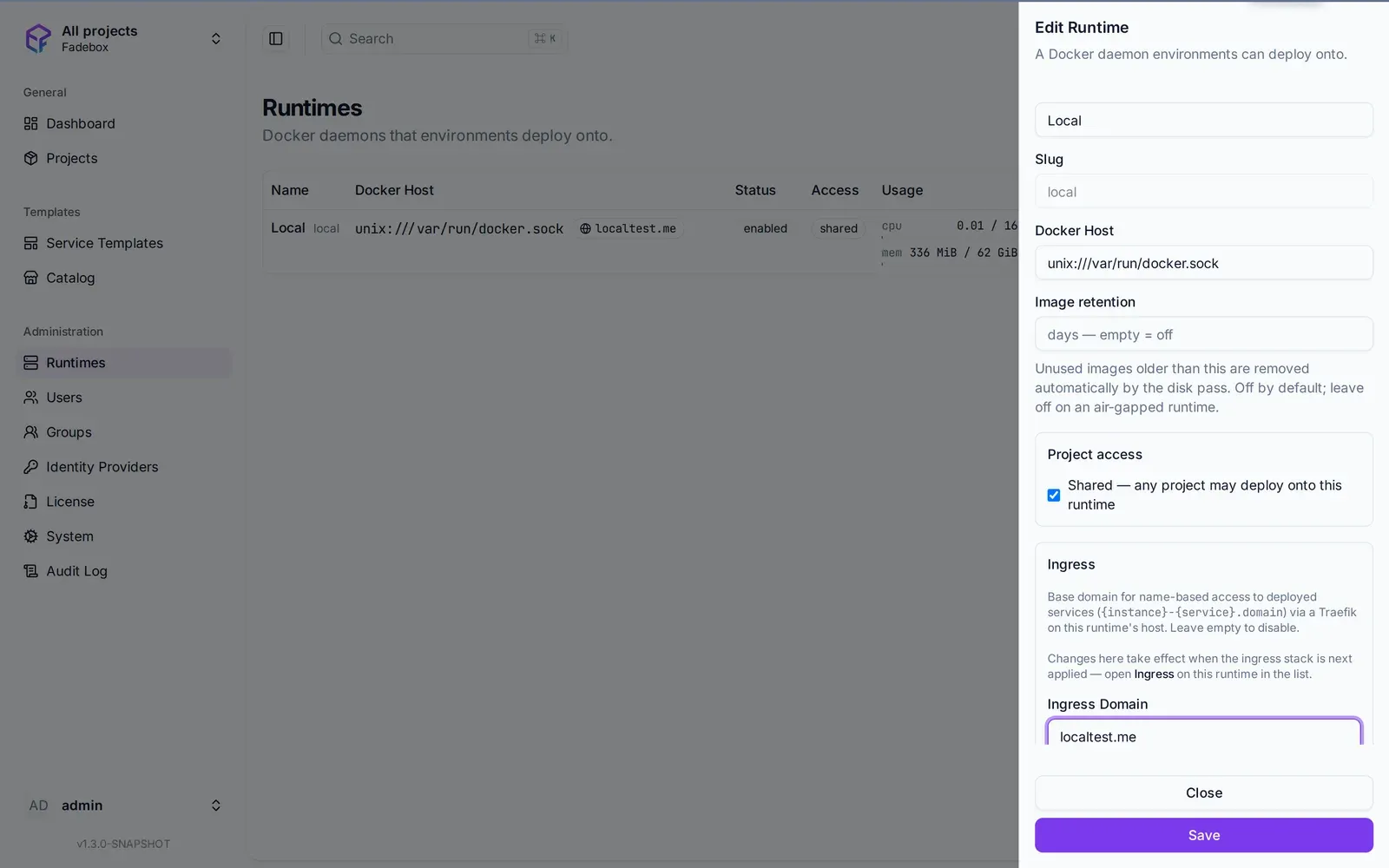
The local runtime, already pointing at the Docker socket. The ingress domain is the only field this post touches.
This is the one trick in the whole post. *.localtest.me is a public wildcard DNS record that
resolves to 127.0.0.1, so every hostname Fadebox generates under it lands on your own machine
with no DNS work at all. Instance hostnames are a single label under that domain,
{project}-{environment}-{instance}-{service}, which is why one wildcard record covers every
instance you will ever create. Leave Serve over HTTPS off here: there is nobody to issue a
certificate for localtest.me, and plain HTTP on your own loopback is fine.
On a company server these are the other two differences, and they are both on this page. The
domain is a wildcard record of your own pointing at the runtime host, *.envs.example.com. And
Serve over HTTPS goes on: give the runtime your DNS provider’s API credentials and the managed
ingress obtains a wildcard certificate from Let’s Encrypt and renews it, so every instance URL is
https:// from the first deploy. Instance URLs can also be made to require a Fadebox sign-in, which
is what keeps a preview environment off the open internet without a VPN. The
ingress guide has both.
Now click Install on the ingress stack. Fadebox deploys Traefik and a Docker socket proxy onto the runtime and shows their state. Traefik only ever routes containers Fadebox labels for it; other containers on your machine stay invisible to it. From here on, any service that declares an HTTP port gets a hostname.
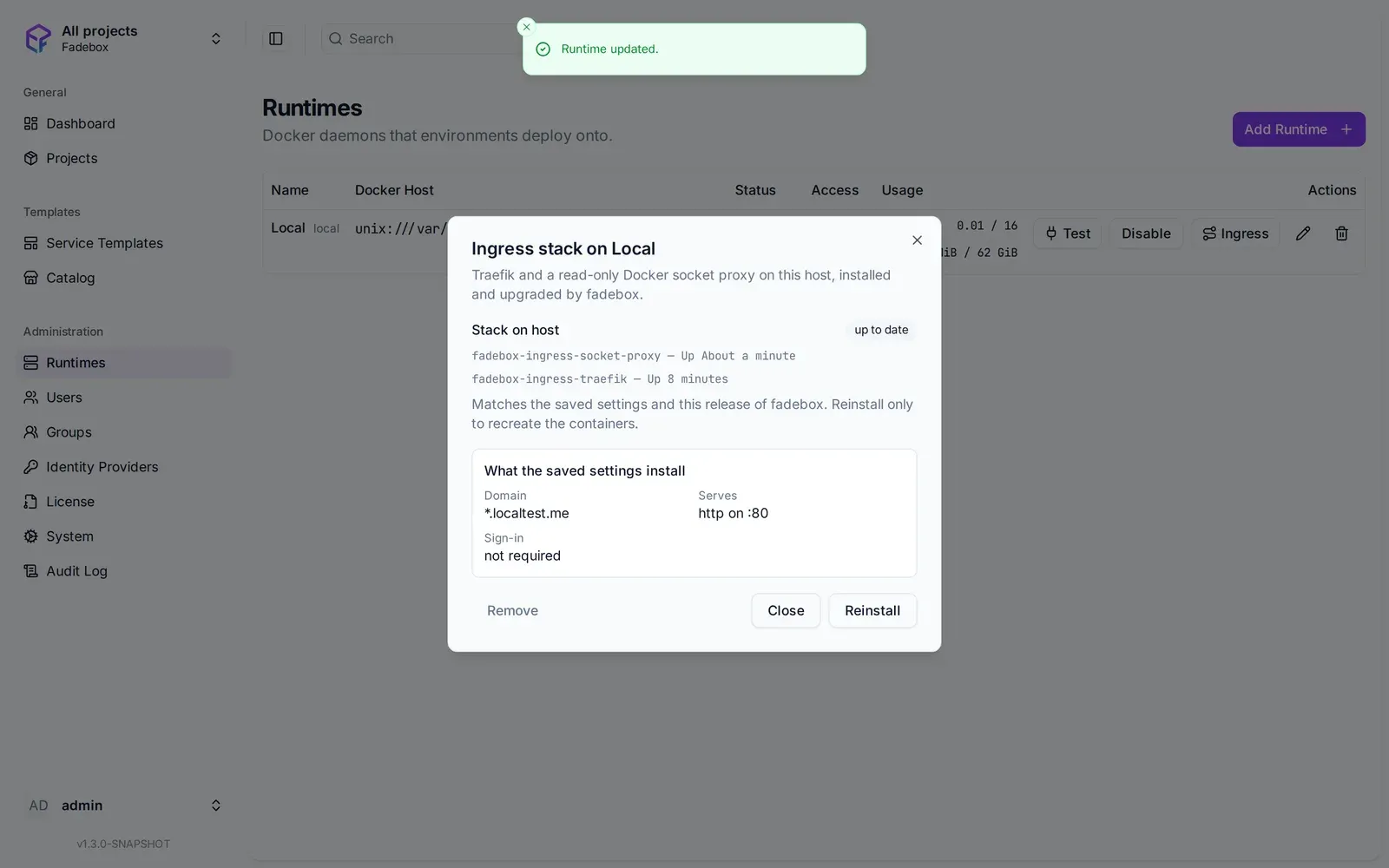
Seven seconds later: Traefik and the socket proxy are running, and the dialog says exactly what the saved settings install.
If something on your machine already listens on port 80, set an ingress port on the runtime
before installing, say 8000. Fadebox binds Traefik there and puts the port into every URL it
generates, so nothing else changes.
4. Create a project and hand it over
Everything you deploy lives in a project, and so do the people allowed to deploy it. Creating one is a global-admin act, because nobody can be a member of a project that does not exist yet.
Go to Projects → New project, name it Demo, and let the slug become demo. The slug is the
first label of every instance URL in the project, so choose it the way you would choose a hostname.
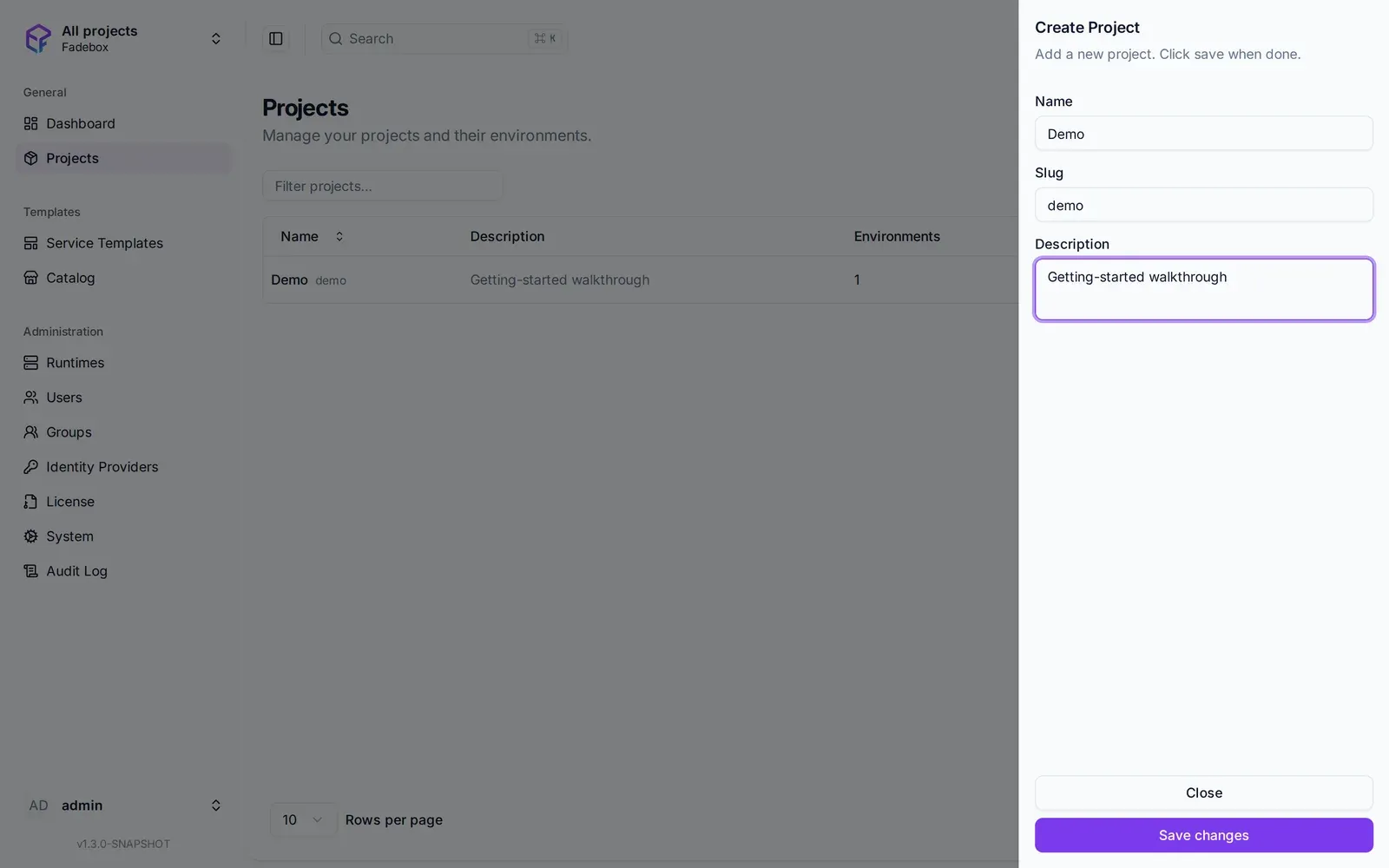
The slug derives from the name and is what every instance URL in the project starts with.
As the admin who created it you are seeded into its maintainers, so you can run it without falling back on your global role. On a laptop, that is probably you. On a shared installation, this is the handoff: under Project → Settings → Members, add whoever will build the environments as a maintainer. Maintainers administer the project, its members, templates and registry logins. Below them, editors compose environments and deployers run them. If you already have an identity provider, groups mapped from its claims do this for a whole team at once; the access control guide shows how.
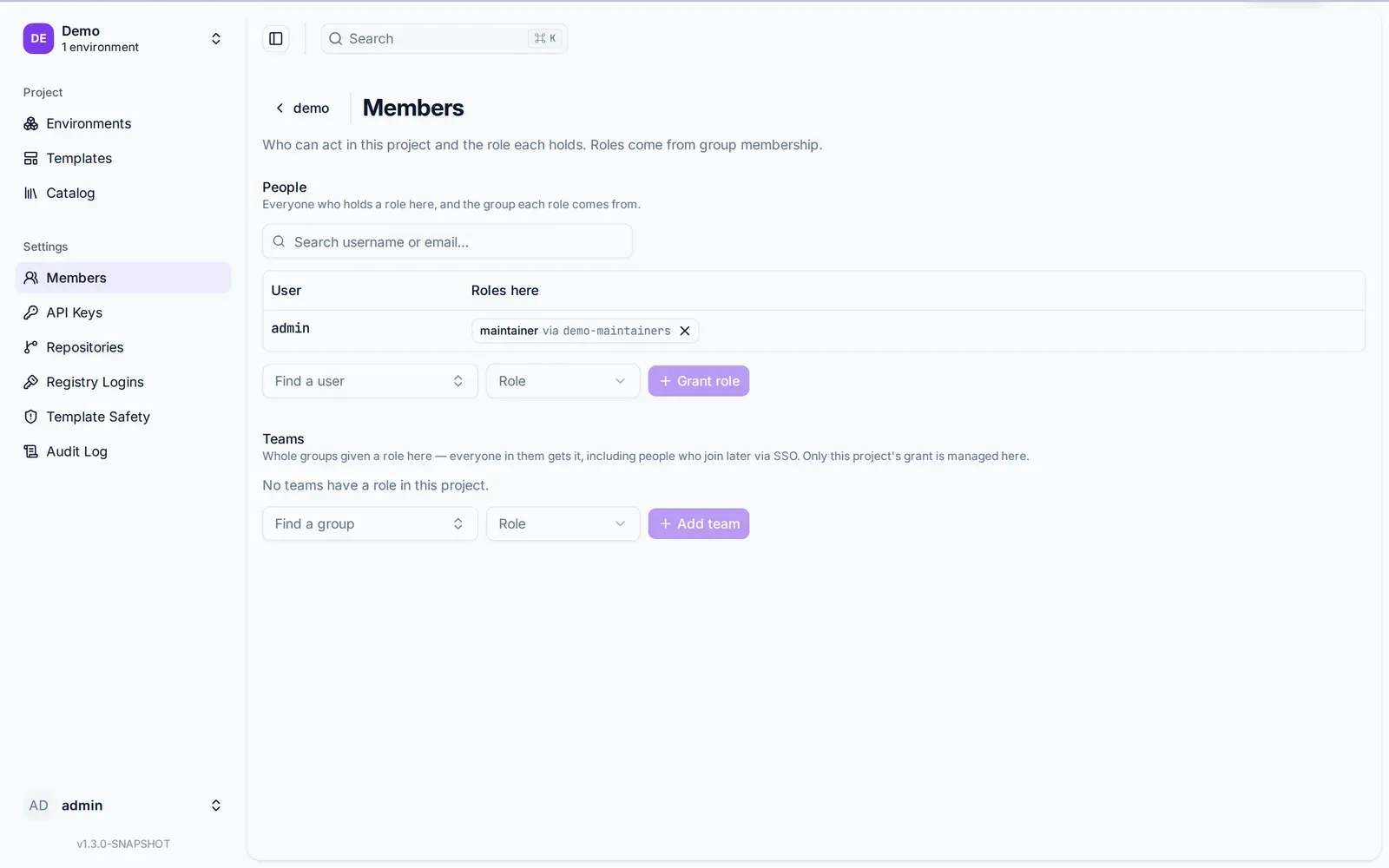
The handoff. Whoever gets maintainer here owns the project from now on; operations does not need to come back.
Where you are
Fadebox is running on your machine. Its local runtime has a domain and an ingress that will route by name. There is a project with you in it. Nothing has been deployed yet, and that is the point: the platform half is done, and it is the half you do once.
When you move it to a server, the shape that works for most companies is one small VM for the Fadebox app and a separate, larger Docker host for the environments, registered under Runtimes as a remote daemon over mutual TLS. The app then holds no workload of its own, the capacity lives where it is cheap to add, and a second runtime later is one more row on the same page. Add single sign-on at the same time: any OIDC provider, configured in the UI with no restart, with form login kept as the break-glass path. Everything in the next post works identically on the laptop and on that server.
The next post takes the project from here: a database from the catalog, a template you write
yourself for a real application, an environment that composes the two, and an instance of it
answering on http://demo-dev-pr-42-petclinic.localtest.me.